Set up iPhone for older adult
A family member changes font size, moves a few icons and hands over the iPhone. The first call works with help. The next day, the user cannot find the same path and is afraid to touch the screen.
To set up iPhone for older adult in a useful way, start with the person’s familiar actions and observe what happens without a running explanation. Age alone does not tell you which settings or shortcuts will help.
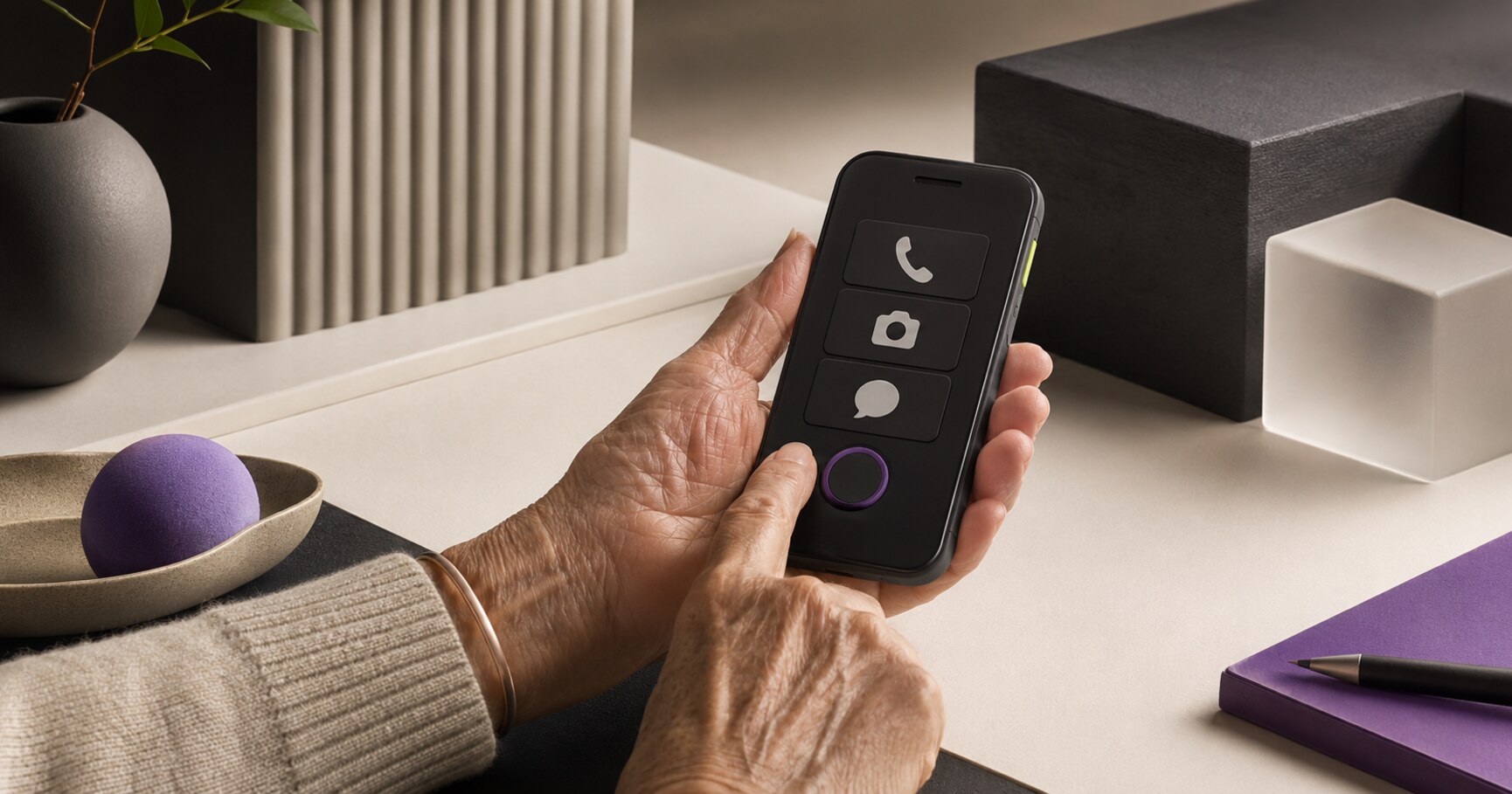
Set up iPhone for older adult around familiar actions
Write the few tasks that matter now: call a person, read a message, see a photo, check a schedule or open a trusted site. Use the person’s words and memories for the labels and order. A shorter home screen is useful only when it makes the intended action easier to recognise.
Improve visibility without changing every habit at once
Adjust one visual or interaction setting, then repeat the same task. Notice whether the person sees the control, understands what it does and can recover after a wrong tap. Avoid changing several variables and then guessing which one helped.
Use Assistive Access when the ongoing experience needs focus
Assistive Access may be useful when a small set of apps and a simpler route should remain consistent. Decide from the task, not from a general idea that the device should look simpler. Keep a supporter path for settings and recovery.
Keep website routes recognisable
If a trusted website is part of the routine, the browser’s history and controls may add unnecessary choices. A focused shortcut can help, but test the website itself, the network state and the way back. The shortcut should not promise a level of simplicity the page cannot provide.
Test independence after the setup day
Return after a pause or several days and ask the person to complete the same task without prompts. Record what they recognise, where they stop, what they fear and which support still belongs to a helper. A successful first run with coaching is not the same as independent use.
The best setup is not the one that removes the most controls. It is the one that gives the person a reliable route to what matters and a safe way to recover.
Practice the idea on one real example
Choose one action the person already performs in daily life. Ask them to show the current route before changing anything, then record the point that causes friction.
Change one setting or shortcut and repeat the task without explaining it. Keep the setting only if recognition, completion or recovery becomes easier.
Test again later and write a short support note with the normal route, safe return and one condition that still needs help.
Leave with: a setup note built around one task, including what the person recognises and where support is still needed.
Before you move on
- Which action is already familiar?
- What does the person see and recognise?
- Which single change could reduce friction?
- Can the route be repeated later without coaching?
Kiosk Web Launcher adds large shortcuts, fullscreen browsing, domain controls and protected settings.
Explore Kiosk Web Launcher →